Your cart is empty
Looks like you haven't added anything to your cart yet









How to Troubleshoot Common Streaming Device Connection Issues
Last Updated: November 3, 2026
Quick Summary
Most streaming device connection problems come from the Wi-Fi link or the internet connection, not the device itself. Start by checking whether the device can see your network, then power cycle the modem, router and device in that order. If that fails, check signal strength, re-enter the network password and test whether other devices work on the same network.
- Check whether other phones and laptops work on the same network to locate the fault.
- Power cycle in order: device, router and modem, wait 30 seconds, then restart the modem first.
- Passwords are case-sensitive, and a single wrong character blocks the connection.
- Treat anything below two signal bars as a real problem and move the device closer to the router.
- Reset to factory settings only after simpler fixes fail, because it erases apps and logins.
Table of Contents
- Start With the Symptom: Is the Problem Wi-Fi or the Device?
- Roku Not Connecting to Wi-Fi But Other Devices Are
- Power Cycle and Restart: Clearing Your Router, Modem and Streaming Device
- Checking Wi-Fi Signal, Network Credentials and DNS Settings
- Fixing Roku Error 003 and Roku Error 009
- Why Your Streaming Device Keeps Losing Connection
- Booking Your Next Steps: When to Reset, Replace or Call Support
- Frequently Asked Questions
Start With the Symptom: Is the Problem Wi-Fi or the Device?
Streaming problems usually show up the same way: the picture freezes, the app spins, or the TV says it cannot connect. The first job is figuring out where the break is. If it connects but nothing loads, the problem is likely past the router, at the internet connection itself. Check whether your internet speed is actually sufficient for live TV before blaming the device.
Splitting the problem this way saves time. Most people start by resetting the streaming stick, when the real fault is somewhere else. Checking the symptom first points you to the right fix.
No Wi-Fi Signal vs. Connected but No Internet
These two problems look alike but have different causes. Check which one you have before you change any settings.
- No Wi-Fi signal: The device cannot find or join your network. Look for a missing network name or a password error.
- Connected but no internet: The device joins the network, but apps show buffering, errors or a blank home screen.
If other phones and laptops work fine on the same network, the router is probably healthy. Focus on the streaming device and its connection.
Roku Not Connecting to Wi-Fi But Other Devices Are
When a Roku refuses to join Wi-Fi while your phone connects without trouble, the cause is usually a small mismatch. Start by confirming the network name and password are typed exactly right.
Next, check the band. Many routers broadcast both 2.4 GHz and 5 GHz networks under similar names. Some older Roku models only work on 2.4 GHz. Connect to the band your device supports, then try again.
A common mistake is forgetting the router's security type. Most home routers use WPA2 or WPA3. If you changed the router to a newer security setting recently, an older streaming device may not recognize it.
Power Cycle and Restart: Clearing Your Router, Modem and Streaming Device
A full power cycle clears temporary faults that cause many connection errors. Do it in the right order so each device reconnects cleanly.
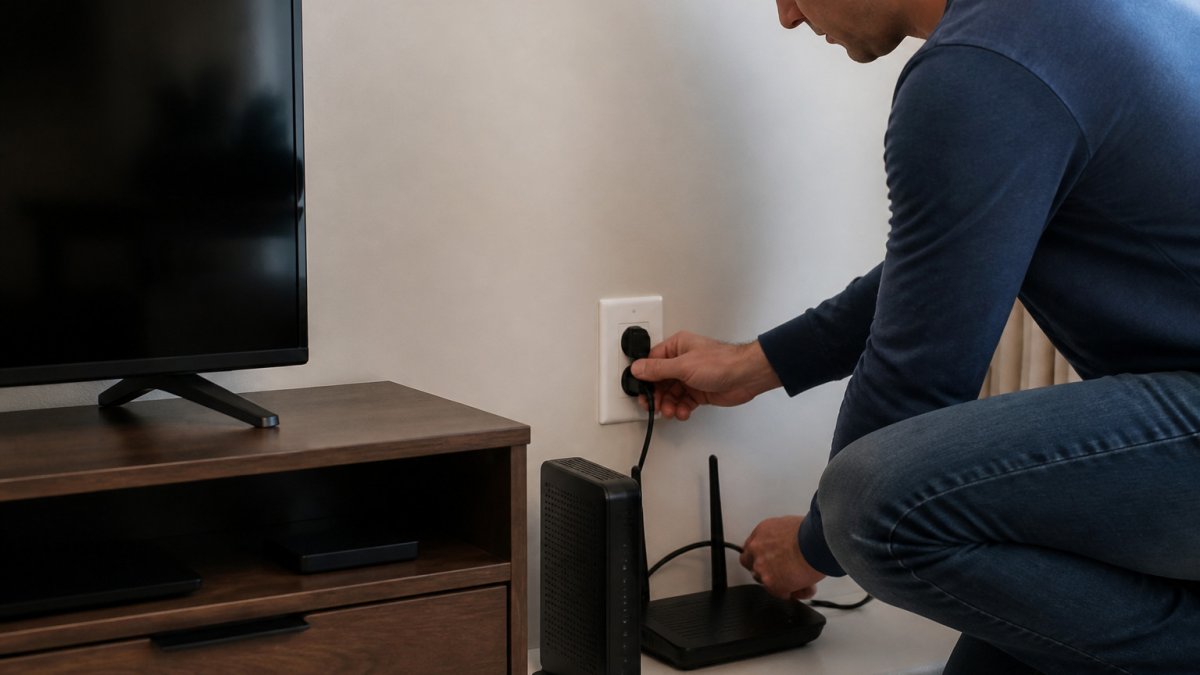
- Unplug the streaming device from power.
- Unplug the router and modem from the wall.
- Wait 30 seconds.
- Plug in the modem first and wait until its lights settle.
- Plug in the router and wait for it to finish starting up.
- Plug the streaming device back in and test the connection.
!Person unplugging a home Wi-Fi router and modem from a wall outlet in a living room, with a TV and streaming stick visible nearby
Watch out: Restarting only the streaming device rarely fixes a network fault. Skipping the modem and router leaves the bad connection in place.
Checking Wi-Fi Signal, Network Credentials and DNS Settings
If the restart does not help, work through signal, credentials, and DNS in that order. Each one produces a different symptom, so the order matters.
Reading the Signal, Not Just the Bars
Weak signal causes buffering and dropped connections, especially when the streaming device sits behind a metal TV stand, inside a closed cabinet, or far from the router. Signal bars on a streaming device are coarse; treat anything below two bars as a real problem. Move the device closer to the router, or move the router to a more open, central spot.
A common pattern is a device that connects fine at setup and then drops when the microwave runs or when a neighbor's network overlaps the same channel. If drops cluster at certain times, channel congestion is a likely cause; changing the router's channel (or letting it auto-select) often clears it.
Re-entering Network Credentials Cleanly
Confirm the saved network details before assuming a hardware fault. Open the network settings on the device, choose 'Forget network,' and join again with the password typed carefully. Passwords are case-sensitive, and a single wrong character blocks the connection. If the router uses WPA3 and the device is older, the device may fail to join even with the correct password; switching the router to WPA2/WPA3 mixed mode is the usual fix.
Watch out: If you recently changed the router's security type or password, the device may still be trying the old credentials. Forgetting the network first prevents that stale-profile loop.
Using DNS as a Diagnostic, Not a Cure
DNS problems can stop apps from loading even when the Wi-Fi icon looks normal, because the device can reach the router but cannot resolve the service's hostnames. A quick test is to switch the device or router to a public DNS resolver such as Cloudflare (1.1.1.1) or Google (8.8.8.8 and 8.8.4.4). If apps start loading after the change, the original DNS server was the problem.
A related advanced step is assigning a static IP to the streaming device from the router's DHCP reservation list. Persistent drops that clear after a reboot are sometimes caused by two devices fighting over the same address; a reservation removes that conflict without changing anything else on the network.
Fixing Roku Error 003 and Roku Error 009
Roku error 003 and error 009 both point to network trouble, but they have different meanings.
- Error 003 usually means the Roku cannot reach the internet or the streaming service. Restart the router and modem, then check whether other devices can load websites.
- Error 009 often means the device cannot find a working network connection or has a problem with its network setup. Re-enter the Wi-Fi password and confirm the router is broadcasting.
If the error returns after you restart everything, check whether your internet provider has an outage in your area. A provider problem looks exactly like a device problem, and no setting change will fix it.
The two error codes point to different network problems, as summarised below.
| Error | Likely meaning | First fix |
|---|---|---|
| Error 003 | Cannot reach the internet or streaming service | Restart the router and modem |
| Error 009 | No working network connection or setup problem | Re-enter the Wi-Fi password |
Why Your Streaming Device Keeps Losing Connection
When a device connects but drops again and again, the cause is often outside your home, and it rarely shows up as a clear error. The fixes below are the ones most guides skip.
ISP-Side Interference: Throttling, Data Caps and CGNAT
Internet providers sometimes slow traffic during busy hours. This is throttling, and it can make video buffer even when a speed test looks fine, because a short test does not reflect sustained streaming.
Data caps matter too. Many plans slow speeds after a monthly allowance is used, and the slowdown looks exactly like a device fault. Check your plan's allowance and your provider's usage meter before replacing hardware.
A less obvious cause is carrier-grade NAT (CGNAT), where the provider shares one public address among many customers. Some streaming services and remote-access features behave badly behind CGNAT, and no router setting fixes it.
Network Congestion and VPN or Proxy Conflicts
Congestion happens when many devices share the connection at once. A household with several phones, game consoles, and laptops streaming at the same time can overload a basic plan.
VPN and proxy apps can also cause trouble. A VPN running on your phone or router may send traffic through a distant server, which adds latency and sometimes blocks streaming services outright. Turn off the VPN on the router and test the streaming device again.
Watch out: A VPN left running on a router can affect every device in the home, so test with it fully off before blaming the streaming stick.
Hardware Heat and Power
Streaming sticks and routers can overheat in closed cabinets and then drop connections. Give them open space and good airflow, and keep them away from amplifiers and other heat sources. A device that drops only after an hour of playback is a classic heat symptom. Power is the other hardware factor: a marginal USB port or a failing power adapter can cause random reboots that look like network drops, so try the device on a different power source before replacing it.
Booking Your Next Steps: When to Reset, Replace or Call Support
Work through the fixes above in order. Start with the power cycle, then check signal and settings, then look at outages and congestion. Only reset the device to factory settings after the simpler steps fail, because a reset erases your saved apps and logins.
Replace the device if it keeps failing after a full reset and every other device works fine on the same network. Contact your internet provider if your speed test is consistently far below your plan, or if the whole home loses service.
For help choosing streaming hardware and accessories, contact 2mepromo.com directly for current options and a quote.
Frequently Asked Questions
Why does my streaming device say it is connected but nothing loads?
This usually means the device joined your Wi-Fi but cannot reach the internet. Restart the modem and router, then check whether other devices can load websites.
How do I know if my internet speed is fast enough for live TV?
Live TV needs a steady connection, so a brief speed test is not enough. Test at several times of day and watch for buffering during busy hours.
Does a VPN cause streaming problems?
It can. A VPN adds distance and delay to your connection, and some streaming services block VPN traffic. Turn it off and test again to check.
Should I factory reset my streaming device?
Only after simpler fixes fail. A factory reset erases apps and saved logins, so use it as a last step.
Frequently Asked Questions
Why is my Roku not connecting to Wi-Fi when other devices are?
When other devices connect and the Roku does not, the router is usually fine and the problem sits in the Roku's stored network settings or its wireless radio. Start by forgetting the network on the Roku and entering the Wi-Fi password again, checking that you are selecting the correct band (2.4 GHz or 5 GHz), and confirming the password is typed exactly right, since passwords are case-sensitive. If it still fails, power cycle the Roku and the router, then check whether the Roku firmware is current. A factory reset is the last step before contacting support.
How can I fix a Roku error 003?
Roku error 003 typically means the device cannot establish a connection to the network or the internet. Restart the Roku, confirm the network name and password are correct, and make sure the router is broadcasting. Then power cycle the router and modem, move the Roku closer to the router or use a wired Ethernet connection if your model supports it, and run the connection test under Settings, Network. If the test keeps failing while other devices work, check your internet service provider for outages in your area.
What should I do if my streaming device shows error 009?
Roku error 009 is usually an internet or network connection problem rather than a fault in the device itself. Restart the streaming device, then the router and modem, and wait a full minute before reconnecting. Check the signal strength on the Roku's network settings screen, and move the router or the device if the signal is weak. Confirm your internet plan is active and not interrupted, and test your connection speed on another device to see whether the whole household is affected.
How do I know if the problem is my Wi-Fi or the streaming device?
Test another device on the same network. If a phone or laptop also struggles to stream or load pages, the issue is most likely the router, modem or internet service. If only the streaming device fails, the problem is probably in its network settings, firmware or hardware. You can also connect the device to the router with an Ethernet cable where supported: if it works wired but not on Wi-Fi, the wireless connection is the cause.

- Choosing a selection results in a full page refresh.
