Your cart is empty
Looks like you haven't added anything to your cart yet








Home Theater Without Cable: A Step-by-Step Setup Guide
Last Updated: November 23, 2026
Quick Summary
To set up a home theater without cable, you need a display with built-in apps or a streaming device, a wireless soundbar, and a stable Wi-Fi connection. Connect the streaming device to the TV, place the soundbar centered under the screen, then pair the subwoofer and rear speakers and check that dialogue stays in sync with the picture.
- Connect the soundbar to the TV through an HDMI ARC or eARC port when your TV has one.
- Place the wireless subwoofer a few feet from any corner, since corners make bass sound boomy.
- Keep each wireless speaker within the range the manufacturer lists and out from behind walls.
- Adjust the TV's audio delay setting in small steps if voices trail the picture.
- Use Wi-Fi 5 or newer, or a wired Ethernet connection, to handle 4K streams.
Need a branded display setup?2mepromo.com makes custom signage, tents and promotional products for businesses and agencies.
Shop Custom Signage
Table of Contents
- How to set up a home theater system without cable
- Hardware Requirements for a Cable-Free Home Theater
- Understanding Wireless Audio Transmission: Bluetooth, Wi-Fi and Proprietary Standards
- Best Streaming Devices for Home Theater
- Step-by-Step Setup: Connecting Your Wireless Home Theater
- Best Practices for Wireless Speaker Placement
- Optimizing Your Home Network for 4K Streaming
- Your Next Step: Build the Setup in One Afternoon
- Frequently Asked Questions
How to set up a home theater system without cable
A cable-free home theater is easier to build than most people expect. You need a streaming device, a soundbar or speaker set that connects wirelessly, and a stable Wi-Fi connection. This guide walks through each step from the hardware you need to the final tuning.
Here is what a typical cable-free setup looks like:
- A smart TV or display with built-in apps
- A streaming stick or box for apps like Netflix and YouTube
- A wireless soundbar, with an optional wireless subwoofer
- Optional wireless rear speakers for surround sound
- A home network that can handle 4K streams
Most of the work happens in the setup, not in the buying. Pick the parts that fit your room, then connect them in a sensible order.
Hardware Requirements for a Cable-Free Home Theater
Start with the display, because everything else connects to it. A smart TV handles streaming apps on its own, which can save you a separate device. If your TV has an HDMI port labeled ARC or eARC, that port can send sound from the TV to a soundbar using one cable.
Next, check your Wi-Fi speed. Streaming 4K video needs a steady connection, and several people streaming at once will need more bandwidth.
- Display: A smart TV or a TV plus a streaming device
- Audio: A soundbar with wireless connectivity
- Power: Outlets near the TV and speakers, since wireless speakers still need power
- Network: Wi-Fi 5 or newer, or a wired Ethernet connection to your router
Understanding Wireless Audio Transmission: Bluetooth, Wi-Fi and Proprietary Standards
Wireless speakers reach the soundbar in one of three ways, and the transport you pick determines sound quality, range, and, most importantly, how far the audio drifts out of sync with the picture. Most buying guides gloss over that last part. Here is the practical breakdown.
Bluetooth is the easiest path. Nearly every TV, phone, and soundbar supports it, and pairing takes seconds. The catch is compression: standard Bluetooth (SBC) throws away detail to fit the audio into a narrow pipe, and even the better codecs, AAC, Qualcomm aptX, and LDAC, still compress. Latency is the bigger issue. Bluetooth audio can also lag behind the picture, and its range is limited, especially through walls.
Wi-Fi audio streams over your home network instead of a point-to-point radio link. Because the pipe is wider, Wi-Fi can carry lossless or near-lossless audio, and it reaches anywhere your network reaches. The trade-off is that it competes with every other device on the router: a crowded 2.4 GHz band or a weak 5 GHz signal produces dropouts and stutter. Wi-Fi also adds its own buffering delay, which is why network audio systems usually include a sync adjustment in their app.
Proprietary wireless standards are the closed links a manufacturer builds between its own soundbar, subwoofer, and rear speakers. They are tuned for one job, moving surround channels a few dozen feet with low, consistent latency, and they usually win on reliability. The cost is lock-in: a proprietary rear speaker only pairs with the same brand's soundbar, and mixing brands is not an option.
Universal standards sit between those poles.
A simple decision rule: if you want the cheapest, simplest path and can tolerate some lag, Bluetooth is fine for a single soundbar. If you want surround sound with rear speakers and a subwoofer, a proprietary system or a WiSA-certified set will be more reliable than mixing Bluetooth and Wi-Fi pieces. If you plan to expand into a whole-home audio system later, favor Wi-Fi-based platforms that already support multi-room grouping.
Best Streaming Devices for Home Theater
Your streaming device decides which apps you can use and how smoothly they run. Here are the most common options, with the pros and cons of each.
| Device | Pros | Cons |
|---|---|---|
| Smart TV built-in apps | No extra box, simple setup | Apps can be slow on older models |
| Streaming stick | Small, cheap, fast interface | Limited ports, can overheat |
| Streaming box | Strong processor, 4K and HDR support | Takes up more space, costs more |
| Game console | Runs most apps, plays games | Higher power use, not made for streaming |
For most homes, a streaming box or a recent stick gives the best balance of speed and value. A built-in smart TV app is fine if you watch one or two services.
Step-by-Step Setup: Connecting Your Wireless Home Theater
Follow these steps in order. Each one builds on the last. If a wireless device fails to connect during setup, troubleshoot common streaming device connection issues to diagnose the problem.
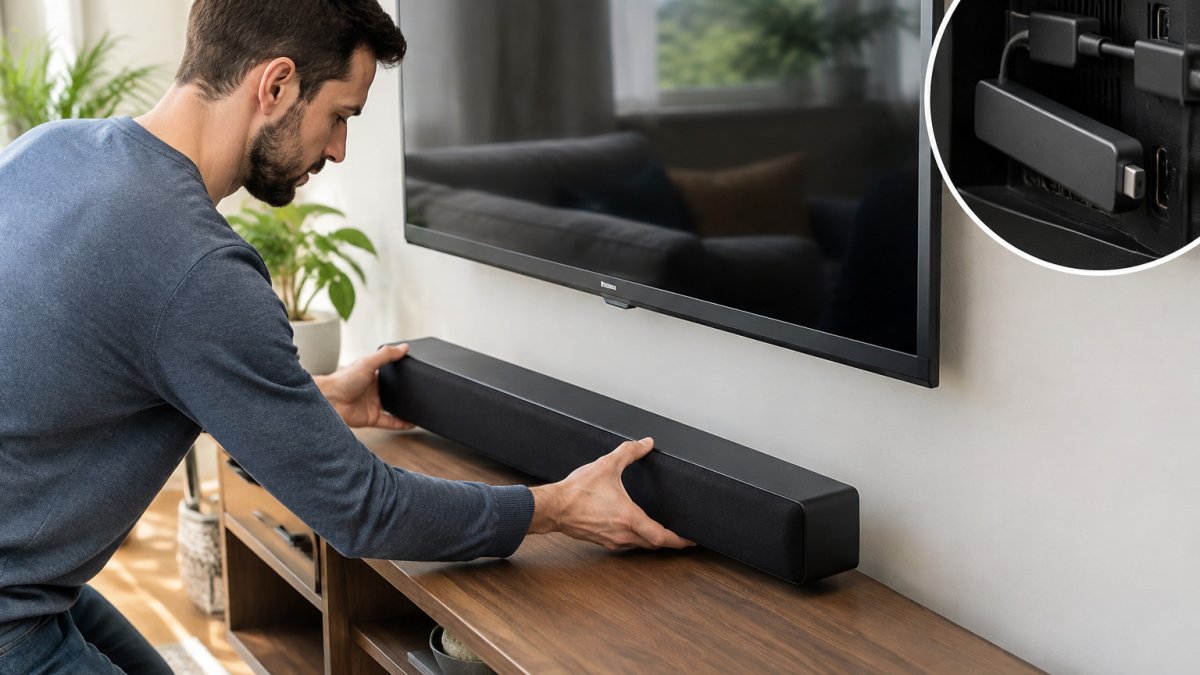
- Place the TV and mount it. Put the screen where you'll sit, at eye level when seated.
- Connect the streaming device. Plug it into an HDMI port on the TV. Power it on and join your Wi-Fi network.
- Set up the soundbar. Place it under the TV, centered, and plug it in.
- Link the soundbar to the TV. Use the HDMI ARC or eARC port if your TV has one. Otherwise, pair the soundbar over Bluetooth or optical cable.
- Pair the wireless subwoofer and rear speakers. Follow the brand's pairing steps. Most pair automatically when powered on near the soundbar.
- Test the sound. Play a movie scene with dialogue and action. Check that voices come from the center and effects come from the sides.
Expected result: Sound comes from the soundbar and speakers, with no cables running across the room.
Setting up a soundbar and wireless subwoofer
Place the subwoofer near the soundbar, but not in a corner, since corners can make bass boomy. Keep it within the range the manufacturer lists. Walls and metal objects can weaken the signal, so try a few spots before you settle on one.
Watch out: a subwoofer placed too close to the sofa can sound muddy. Move it a few feet away and listen again.
Pairing wireless rear speakers and managing latency
Rear speakers usually pair in a few minutes. The bigger challenge is latency, the small delay between the picture and the sound. If dialogue looks out of sync, check the TV's audio delay setting. Many TVs and soundbars let you adjust it in steps of a few milliseconds. Once the audio delay is dialed in, a stable home network helps keep wireless speakers connected as part of a 21st Century Audio Video setup.
Best Practices for Wireless Speaker Placement
Placement does more for sound than spending more on gear, and in a cable-free system it also determines whether the wireless link stays stable. If you are also choosing gear for a presentation or display setup, see top retractable banner stands for professional presentations. Work through these positions in order, then calibrate.
Center channel. Put it directly under or above the screen, centered on the seating position, with the tweeter at roughly ear height when you are seated. If the soundbar handles center duties, keep it centered under the TV and avoid pushing it back into a cabinet, a recessed soundbar smears dialogue.
Front left and right. Aim them so they form roughly a 45- to 60-degree angle from the main seat, toed slightly inward toward the listener. In a small room, pulling them a foot off the front wall reduces boomy reflections.
Rear surrounds. Place them to the sides and slightly behind the main seat, at or a little above ear height, angled toward the listener. A common starting point is about 2 to 3 feet behind and 2 to 3 feet to each side of the seat. If the room forces them closer, angle them more sharply inward rather than moving them forward.
Subwoofer. Skip the corner. Corners load the room and make bass boomy and one-note. Start with the sub about a quarter of the way along the front wall, a few feet from any corner, and try two or three spots before settling.
Wireless link clearance. Keep each wireless speaker within the manufacturer's stated range (often 10 to 30 feet) and in line of sight where possible. Walls, metal shelving, and large appliances weaken the signal. Do not bury a rear speaker behind a sofa or inside a closed cabinet, you are blocking both the radio link and the sound.
Power planning. This is the part most guides skip: wireless does not mean cordless. Every rear speaker and subwoofer still needs a wall outlet or a power strip. Before you buy, walk the room and count outlets near each intended speaker position.
Calibrate lip-sync after placement. Once speakers are in place, play a scene with hard dialogue and a visible mouth. If voices trail the picture, open the TV's audio delay (sometimes called audio sync or lip-sync) menu and nudge it in small steps, most sets adjust in 5 to 10 ms increments.
Run the room correction.
Watch out: if a rear speaker drops out only when someone walks between it and the soundbar, the fix is usually repositioning, not a new speaker, bodies absorb the 2.4 GHz and 5 GHz signals these links use.
Optimizing Your Home Network for 4K Streaming
A 4K stream can stop and start if your network is weak. Small changes often fix this.
- Place the router in a central, open spot, not inside a cabinet
- Use a wired Ethernet cable for the streaming device when possible
- Turn off large downloads while you watch
- Restart the router if streams buffer often
- Choose the 5 GHz Wi-Fi band for short distances
Test your connection before you assume it's fine.
Your Next Step: Build the Setup in One Afternoon
A cable-free home theater takes a few hours to set up. Start with the streaming device and soundbar, then add wireless speakers once the basics work. Check your network speed, place each speaker with care and fix the audio delay if needed.
Frequently Asked Questions
What do I need to set up a home theater system?
A basic cable-free home theater needs a TV with HDMI ARC or eARC, a streaming device or smart TV platform, a soundbar or receiver with wireless rear and subwoofer support, and a stable home network. Most setups also need power outlets near each speaker, since wireless speakers still need electricity. Start with the soundbar and streaming device, confirm your TV's audio output options, then add wireless rear speakers if your room and budget allow. Check the manufacturer's compatibility list before buying, because wireless rear and subwoofer kits often work only with matching brands.
Can you get surround sound without wires?
Yes. Many soundbar systems and wireless surround kits send audio to rear speakers and a subwoofer over a proprietary radio link, so no speaker wire runs through the room. The trade-off is that wireless speakers still need a power outlet, and performance depends on how far apart the units are and what interference is present. Some systems add a small delay to keep sound in sync with the picture, so check the latency specifications before purchase if you watch fast-paced content or play games.
Do I need a traditional receiver if I only use streaming services?
Usually not. A soundbar with built-in decoding for Dolby Digital and Dolby Atmos, connected to your TV through HDMI ARC or eARC, can handle streaming apps directly. A traditional receiver becomes useful if you have many legacy sources, want to switch among several devices, or need multi-channel amplification for a large room. For most streaming-only households, a soundbar with wireless surround is simpler and costs less to set up.
How do I optimize my home network for 4K streaming?
4K streaming needs a sustained connection for each stream. Place your router centrally, use a 5 GHz band for the streaming device when possible, and connect the device with Ethernet if the TV or player has a port. Limit other heavy downloads during viewing, and restart the router if buffering persists. A mesh system helps when the living room sits far from the router.

- Choosing a selection results in a full page refresh.
